Author: Organic Agent

  • WP-Cron vs Real Cron for Scheduled SEO Work

    WP-Cron vs Real Cron for Scheduled SEO Work

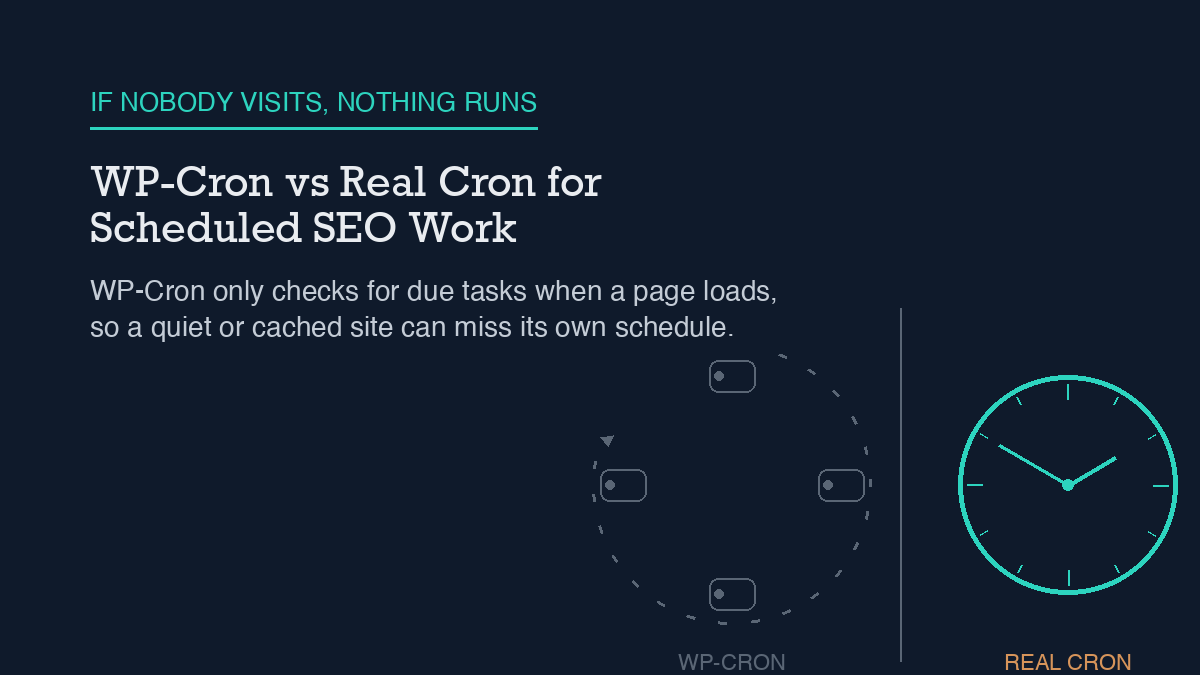
    WP-Cron is not a real cron job. It is a pseudo-scheduler that only checks for due tasks when someone loads a page on your site, which means it can silently stop firing on a low-traffic site or a fully cached one and nothing in the admin will tell you. The fix is to add define('DISABLE_WP_CRON', true); to wp-config.php and point a real system cron job or scheduled task at wp-cron.php on a fixed interval instead. Verify it worked with wp cron test and wp cron event list, not by assuming the fix took effect.

    Why it happens

    WordPress core does not run a background daemon. Instead, every page load calls wp_cron(), which checks the scheduled-events table stored in the cron option and, if anything is due, calls spawn_cron() to kick off a run. That call is guarded by a transient lock – the doing_cron option, held for WP_CRON_LOCK_TIMEOUT seconds (60 by default) – so two visitors hitting the site at the same moment don’t trigger two overlapping cron runs.

    The part that actually causes the failures we care about is how that trigger fires. spawn_cron() sends a non-blocking HTTP request, via wp_remote_post(), to wp-cron.php with a very short timeout and blocking set to false. The page that triggered it doesn’t wait around to find out whether the cron run succeeded, or whether it ran at all. That’s a deliberate design choice – it keeps a visitor’s page load fast – but it also means a broken cron trigger fails silently. No error in the admin, no email, nothing. It just stops running, and unless someone visits infrequently enough or checks directly, you won’t notice.

    This matters more than it sounds like on a site that leans on scheduled background work for SEO tasks. We use WP-Cron indirectly every time we automate Rank Math field updates with an agent on a schedule, and the same dependency shows up anywhere a plugin queues sitemap regeneration, rank tracking, or scheduled publishing behind a cron hook. If the page-load trigger stalls – because a page cache is serving every request from disk without touching PHP, or because traffic on a given route just dries up – every one of those scheduled jobs stalls with it, quietly.

    Step-by-step fix

    The fix has two parts: stop relying on page loads to trigger cron, and start triggering it from something that actually runs on a schedule regardless of traffic.

    1. Disable the page-load trigger. Add this line to wp-config.php, above the line that says “That’s all, stop editing”:

    define('DISABLE_WP_CRON', true);

    This stops wp_cron() from firing its non-blocking request on every page view. It does not clear or disable the scheduled events themselves – they stay registered in the cron option and will run the moment something else calls wp-cron.php directly.

    2. Point a real scheduler at wp-cron.php. On Linux or macOS, a crontab entry that hits the endpoint once a minute (or whatever interval matches your tightest scheduled task) looks like this:

    0 0 * * * wget --delete-after http://YOUR_SITE_URL/wp-cron.php

    On Windows, the equivalent is a scheduled task running a PowerShell command:

    powershell "Invoke-WebRequest http://YOUR_SITE_URL/wp-cron.php"

    Either way, you’re replacing an unreliable, traffic-dependent trigger with one that fires on a fixed interval no matter how many visitors the site gets. This pairs naturally with any other scheduled automation already hitting the site’s endpoints – if you’re already calling into the WordPress REST API for SEO automation, adding one more scheduled HTTP call to the same infrastructure is a small addition, not a new dependency.

    3. Know that ALTERNATE_WP_CRON is not a substitute. Some hosts that block loopback HTTP requests suggest setting ALTERNATE_WP_CRON instead. That’s a redirect-based trigger that still depends on page loads – it works around a specific hosting restriction, but it does not give you a true, traffic-independent scheduler the way a real cron job does.

    How to verify it worked

    Don’t assume the fix took. WP-CLI has a built-in diagnostic for exactly this: wp cron test. It checks whether DISABLE_WP_CRON is set and errors if the page trigger is still disabled without a replacement in place, warns if ALTERNATE_WP_CRON is active, and attempts to spawn WP-Cron over HTTP itself, warning on anything other than a 200 response. On a healthy setup it reports “Success: WP-Cron spawning is working as expected.”

    Follow that with wp cron event list, which shows every registered hook along with its next scheduled run time and recurrence. If a hook’s next-run time is in the past and staying there across repeated checks, the event is registered but not actually firing – which is the exact failure mode a broken trigger produces.

    This is the same verification discipline we apply to drift monitoring on this site: drift checks are themselves a scheduled job, and if WP-Cron stalls, the monitoring meant to catch problems stalls right along with it. Checking wp cron event list after any server or caching change is a five-second habit that catches this before it becomes a multi-day blind spot.

    What to do when the standard fix fails

    If you’ve set DISABLE_WP_CRON, wired up a real cron job, and wp cron test still isn’t clean, the trigger mechanism usually isn’t the problem anymore – the scheduling code registering the events is. The most common cause is a plugin or custom code calling wp_schedule_event( $timestamp, $recurrence, $hook, $args ) with an $args array that changes slightly between calls. wp_next_scheduled() is supposed to prevent duplicate registrations, but it only matches on the exact same $hook and $args pair used originally – if $args drifts even slightly, the duplicate check fails silently, and you end up with the same event registered multiple times, bloating the cron option and multiplying background load.

    wp cron event list will show you this directly: look for the same hook name appearing more than once with different next-run times. From there, wp cron event run --due-now lets you force-execute everything currently due, which is useful for confirming a specific hook actually works once triggered, separate from whether it’s being triggered on schedule at all.

    This is the same category of failure as a stale, stuck background job anywhere else on the stack – it looks a lot like what happens when a sitemap stops updating even though the plugin generating it appears configured correctly. In both cases the fix isn’t re-checking the obvious setting again; it’s confirming the underlying scheduled job is actually running, not just registered.

    Frequently asked questions

    Does DISABLE_WP_CRON stop scheduled events from running entirely?

    No. It only stops the automatic page-load trigger. Scheduled events stay registered in the cron option and will still run the moment something else – a real cron job, WP-CLI, or a direct request – hits wp-cron.php.

    What if my host doesn’t allow real cron jobs?

    ALTERNATE_WP_CRON is the documented fallback for hosts that block loopback HTTP requests, but it’s still page-load-dependent and carries the same silent-failure risk as the default trigger. If your host offers any scheduled-task feature at all – even one meant for other purposes – pointing it at wp-cron.php is more reliable than staying on the page-load trigger.

    How often should the real cron job hit wp-cron.php?

    Match it to your tightest scheduled interval. If nothing on the site runs more often than hourly, once every 15-30 minutes is more than enough; there’s no benefit to polling far more often than your most frequent scheduled task actually needs.

    Can I use WP-CLI’s wp cron event run instead of a system cron job?

    wp cron event run --due-now executes due events on demand, but it has to be triggered by something – it is not itself a scheduler. It’s the right tool for manually forcing a run or testing that a hook works, not a replacement for a real cron job or scheduled task calling wp-cron.php on an interval.
    Shivaa Tripathi runs organic-os, an autonomous SEO operator that researches, drafts, and publishes with human oversight at every approval gate.

  • Multisite SEO Without Duplicating Yourself

    Multisite SEO Without Duplicating Yourself

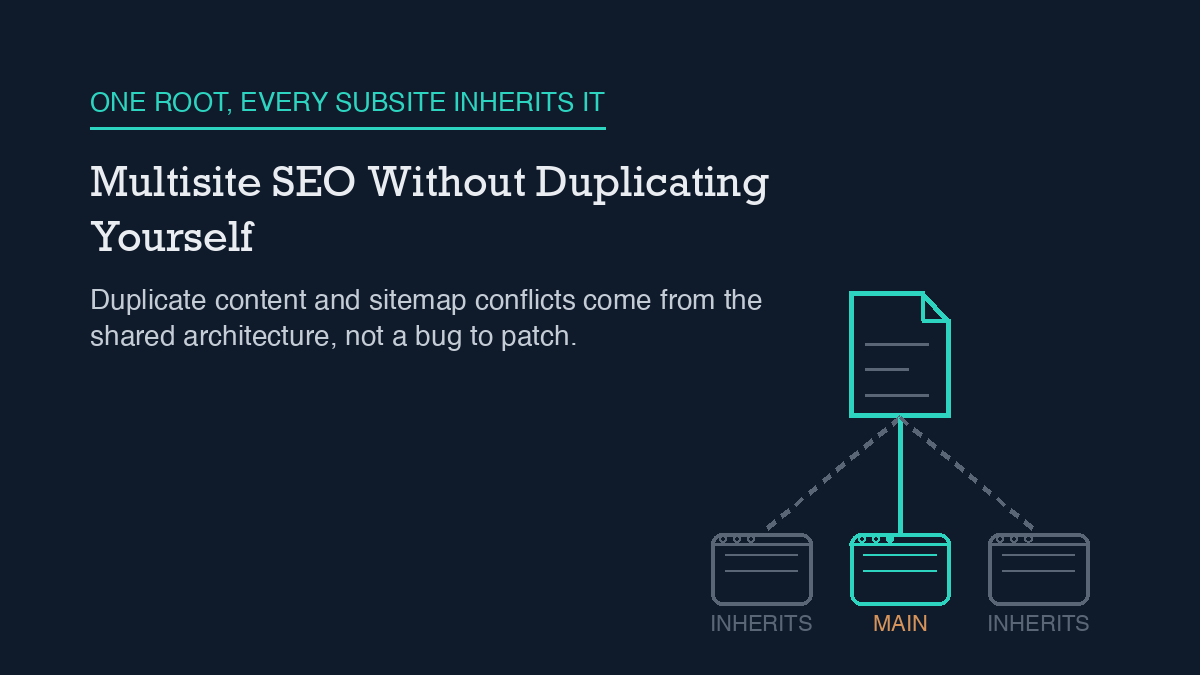
    Multisite SEO problems are not bugs to patch. They come from the architecture: every subsite on a network shares one database, one set of plugins, and often one domain root, so anything that depends on a single, unique file or a single, unique canonical URL – robots.txt, XML sitemaps, boilerplate pages – has to be handled deliberately per subsite. Fix it by setting a self-referencing (or cross-domain) canonical on every subsite, confirming your SEO plugin’s robots.txt and sitemap behavior for your specific network type, and treating your subdomain-vs-subdirectory choice as permanent from day one.

    Why it happens

    A WordPress Multisite network is one WordPress install pretending to be several sites. Every subsite draws from the same database, the same core files, and the same wp-content directory. Themes and plugins are installed once and made available network-wide; a Super Admin can activate a plugin for every subsite at once, and individual site admins cannot always deactivate it. There is no code-level wall between subsites – a plugin conflict or a misconfigured setting on one subsite is a network-wide condition, not a contained one.

    That shared architecture is exactly why SEO tooling behaves differently on multisite. Robots.txt is a good example: a domain can only ever serve one robots.txt file, at its own root. On a subdirectory-structured network, every subsite shares the main site’s domain root, so there is no way for a subdirectory subsite to have its own independent robots.txt no matter which SEO plugin you run. Rank Math, which this site uses, is explicit about this: robots.txt can only be edited on the network’s main site, and every other subsite simply inherits those settings, because subsites do not have an actual file structure to support a separate physical file. Rank Math manages this through a filter rather than writing a file to disk, and it will automatically disable its own robots.txt editor if it detects a real file already sitting on the server, so it does not silently overwrite something you or your host put there on purpose.

    Sitemaps run into a related version of the same problem. Yoast SEO has a long-standing, still-open issue where XML sitemaps can mix up content between subsites on a subdirectory network. Yoast ships a filter to change that behavior, but the filter’s effect is itself gated by a check for whether the install is subdomain- or subdirectory-structured, and any attempt to aggregate sitemap data across a very large network is capped well below what a big network actually contains. None of this is a defect specific to one plugin. It is what happens when tooling built around “one site, one root” assumptions meets an architecture where several sites share a root.

    Duplicate content is the third recurring issue, and it is the most avoidable. Boilerplate pages, syndicated posts, or a shared template repeated across subsites read to a search engine exactly like duplicate content on any single site, because from the search engine’s point of view, that is exactly what it is.

    Step-by-step fix

    1. Decide subdomain or subdirectory before you launch, not after. Subdomain subsites (site1.example.com) each get their own domain root and typically need a wildcard DNS record. Subdirectory subsites (example.com/site1) sit under one existing domain and need no extra DNS work, but they inherit the main site’s root-level files, including robots.txt. Neither structure is universally better; the right one depends on how closely related your subsites are. What matters for SEO specifically is that switching later means editing SUBDOMAIN_INSTALL in wp-config.php, updating every site URL, and running a database search-and-replace across tables including wp_options, wp_posts, wp_postmeta, wp_blogs, and wp_site. Treat the choice as permanent.

    2. Confirm your SEO plugin’s robots.txt behavior for your structure. If you are subdirectory-structured, verify in your plugin’s own documentation that only the main site can edit robots.txt and that every subsite correctly inherits it – do not assume a per-subsite robots.txt editor screen actually does anything on a subdirectory network. Our guide to WordPress robots.txt covers the file’s rules in more depth outside the multisite case.

    3. Check your sitemap settings per subsite, not just at the network level. If you run Yoast on a subdirectory network, look specifically at whether the subdirectory-sitemap filter needs to be set, and do not assume a single network-wide sitemap correctly represents every subsite once the network passes a few hundred sites. If a sitemap looks wrong or frozen and you cannot immediately tell why, our post on a sitemap that stops updating covers the general stale-cache failure mode, which can compound with the multisite-specific mixing issue above.

    4. Put a canonical tag on every piece of shared or boilerplate content. If two subsites legitimately need the same page (a shared privacy policy, a syndicated post), pick one as the source and set a cross-domain canonical on the copy pointing back to it. If a page is unique to its own subsite, its canonical should simply point at itself. Our guide on WordPress canonical URLs walks through what a correct tag looks like in either case.

    5. Audit which plugins are network-activated versus site-specific. A network-activated SEO or caching plugin runs identically on every subsite whether or not that makes sense for the subsite’s content. If one subsite has genuinely different SEO needs, that is a sign it may need site-specific plugin activation rather than relying on the network default.

    6. If you’re running more than one SEO-managed site, keep their configurations from drifting apart silently. Multisite consolidates hosting, but the settings-drift problem it’s solving for is the same one you hit running several separate WordPress installs; see our notes on running an SEO agent across multiple sites for how to keep per-site configuration intentional instead of accidental.

    How to verify it worked

    Visit each subsite’s robots.txt URL directly (not the network admin’s) and confirm it matches what your plugin’s documentation says it should show for that subsite’s role in the network – main site or inherited. Then check each subsite’s XML sitemap and confirm it lists only that subsite’s own URLs, not a mix of URLs from other subsites on the network. Finally, spot-check the canonical tag on any shared or boilerplate page across subsites in view-source, confirming it points where you intend, not at whichever subsite happened to load the shared template first.

    What to do when the standard fix fails

    If a subdirectory subsite’s robots.txt still doesn’t match the main site after you’ve confirmed plugin settings, check for a physical robots.txt file sitting on the server outside the plugin’s control – some hosts or migration processes leave one behind, and most SEO plugins will defer to a real file over their own filter-based version without telling you.

    If sitemap mixing persists after applying your plugin’s subdirectory-specific filter, check your network’s total site count. Aggregation caps on large networks mean the fix that works for a 20-site network can silently stop working once you cross into the hundreds.

    If a canonical tag on shared content keeps reverting or pointing at the wrong subsite, look for a caching layer – object cache, page cache, or CDN – serving a stale version of the shared template to some subsites and not others. Purge every layer and re-check from a private browser window before concluding the canonical logic itself is wrong.

    If none of the above resolves it and the symptom is specifically Google treating two subsites’ content as duplicates in Search Console, re-verify with a fresh crawl after fixing the canonical, since Search Console’s own duplicate-content reporting lags behind a live fix by design.

    Frequently asked questions

    Does every subsite need its own SEO plugin license?

    That depends on the plugin’s own licensing model, not on WordPress. What matters for SEO mechanics is that a network-activated plugin’s behavior – including robots.txt and sitemap handling – applies the same way across every subsite regardless of licensing.

    Can I just block duplicate subsites with robots.txt instead of setting canonicals?

    Not on a subdirectory network – only the main site’s robots.txt can be edited at all, so you cannot selectively block individual subdirectory subsites that way. A canonical tag is the correct tool for duplicate or shared content regardless of network structure.

    Is subdomain multisite easier for SEO than subdirectory?

    Not inherently. Subdomain subsites can each carry their own robots.txt in principle, which removes one specific limitation, but they take on independent DNS management and, in some cases, are treated more like separate domains by search engines, which has its own tradeoffs depending on how related the subsites are.

    Will migrating from separate WordPress installs to multisite hurt my rankings?

    Multisite doesn’t change your existing URLs by itself if you migrate carefully, but a change to your domain structure – moving a separate site into a subdirectory of a new multisite network – is a URL change, and needs the same 301-redirect discipline as any other URL migration.


    Shivaa Tripathi runs organic-os, an autonomous SEO operator that researches, drafts, and publishes with human oversight at every approval gate.

  • WordPress Permalinks and SEO: What Matters

    WordPress Permalinks and SEO: What Matters

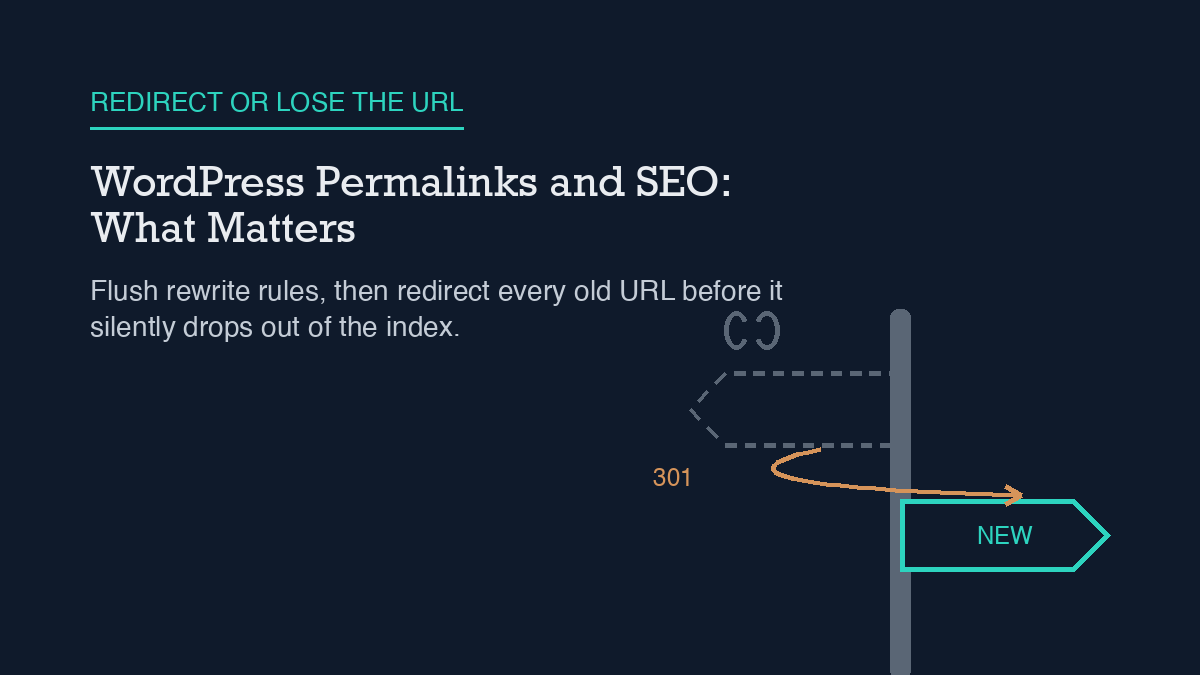
    The short fix: open Settings > Permalinks and click Save Changes to flush WordPress’s rewrite rules, then set up 301 redirects from every old URL pattern to the new one before you tell anyone the URLs have changed. Skipping the redirect step is the most common way a permalink change quietly loses rankings, because an old link can keep loading without ever showing a clean error, which hides the problem from both visitors and Google.

    Why it happens

    WordPress gives you six permalink formats: Plain, Day and name, Month and name, Numeric, Post name, and a Custom Structure you build from structure tags like %year%, %monthnum%, %day%, %category%, %author%, %post_id%, and %postname%. The official documentation is specific about the one rule that matters: “End your structure with either %post_id% or %postname% so that WordPress can target an individual post.” Miss that, and WordPress has no reliable way to resolve the URL back to a single post.

    Most sites settle on Post name, or a custom structure ending in %postname%, because it reads better than the default Plain structure’s ?p=123 query string. Changing that setting looks harmless. What actually happens underneath depends on your server. On Apache, saving the Permalinks screen automatically rewrites your .htaccess file with new rewrite rules, so the new structure works immediately. On Nginx, there is no .htaccess to rewrite at all; Nginx reads its own server block configuration, so a permalink change that works fine on Apache can 404 everywhere on Nginx until someone edits that server config by hand.

    The part that actually costs you traffic is what happens to the URLs you already had. WordPress does not generate redirects for you when you change the structure. The reported failure mode is not even a clean 404: an old, now-invalid URL can silently render your homepage instead of an error page. A visitor does not notice anything obviously broken, and neither does Googlebot at first glance. Over weeks, search engines stop seeing a live version of that specific page and quietly drop it from the index, because nothing ever told them the content moved.

    Step-by-step fix

    1. Pick a structure that ends correctly. Use Post name, or a custom structure ending in %postname% or %post_id%. Avoid Plain unless you have a specific reason to keep it.

    2. Save the Permalinks screen, even with no changes. Go to Settings > Permalinks and click Save Changes. This forces WordPress to flush and regenerate its rewrite rules. On the command line, the equivalent is wp rewrite flush. If you are calling flush_rewrite_rules() from your own plugin or theme code, only do it on an activation hook, never on every page load; it is a real performance cost when it runs on every request.

    3. If you’re on Nginx, edit the server block by hand. The Permalinks screen save only touches .htaccess. Nginx needs its rewrite location block updated to match the new structure, then a config reload.

    4. Check for a missing trailing slash. A custom structure that drops the trailing slash before %postname% parses differently than one that includes it, and can create its own redirect loops or 404s independent of the rest of this fix.

    5. Set up 301 redirects from every old URL pattern to the new one. A 301 tells both browsers and search engines the move is permanent, and it is the step that actually prevents the ranking loss. You can do this with a redirect-manager plugin, such as the Redirection plugin’s source URL / target URL mapping, which also logs any 404s it sees afterward so you can catch redirects you missed. Or you can add manual Redirect 301 lines to .htaccess on Apache. Either way, map the pattern, not just a handful of individual URLs, if your old and new structures differ by a whole segment (for example, dropping a date prefix).

    6. If you use custom post types, confirm they’re registered as public. A custom post type needs 'public' => true and 'publicly_queryable' => true in its registration for WordPress to generate rewrite rules for it at all. Without that, its URLs won’t resolve correctly no matter which permalink structure you pick.

    7. Purge caches. A page cache or CDN edge cache can keep serving a stale 404, or stale old-URL content, even after the redirect is live on the server. Purge before you test.

    How to verify it worked

    Open a private or incognito browser window, not a logged-in session, since a cached login can mask an error that a real visitor would see. Visit a sample of your old URLs directly and confirm each one returns an HTTP 301 and lands on the correct new URL, not the homepage and not a 404.

    While you’re checking URLs, it’s worth confirming the canonical tag on the new URL points to itself and not to the old pattern; see our guide on WordPress canonical URLs for what a correct one looks like. Then check that your XML sitemap has actually updated to the new URLs rather than still listing the old ones, which is a separate and surprisingly common failure covered in our post on a sitemap that stops updating. Once both check out, fold a permalink-structure spot-check into your standing routine; it’s one line item in our broader WordPress SEO checklist.

    What to do when the standard fix fails

    If old URLs are still broken after you’ve flushed rewrite rules and added redirects, work through these in order.

    Redirects got overwritten. Some SEO or caching plugins store their own redirect rules and can silently override or duplicate what you set up in a different plugin. Check whether more than one plugin on the site manages redirects, and consolidate to one.

    You’re on Nginx and only touched the WordPress side. The Permalinks screen save does nothing for Nginx. If your host manages the server config, ask them to confirm the rewrite location block was actually updated and reloaded.

    A custom post type still 404s. Re-check its registration for 'public' => true and 'publicly_queryable' => true, then flush rewrite rules again after fixing the registration, not before.

    Google Search Console keeps showing old 404s or “not indexed” for pages that should be live. That’s frequently a symptom of a page that was accidentally left set to noindex during the migration, not a permalink problem at all; our post on WordPress noindex mistakes walks through how to find those.

    Everything above checks out but the old URL still loads something. Purge every layer of cache again, including any CDN, and re-test from a private window. Caching is the most common reason a fix that is genuinely live on the server doesn’t appear to work yet.

    Frequently asked questions

    Does changing permalinks hurt SEO?

    Changing the structure itself does not. Leaving the old URLs unredirected does. The ranking loss comes from the missing 301s, not from picking a new structure.

    Do I need a redirect for every single URL?

    If your old and new structures differ by a predictable pattern, such as removing a date prefix, one pattern-based redirect rule can cover every affected URL. You only need one-off redirects for exceptions that don’t fit the pattern.

    Is Post name really the best structure?

    It’s the generally recommended one because it’s readable and ends in %postname% as WordPress’s own documentation asks. A custom structure ending the same way works just as well; there’s no single structure that’s SEO-superior beyond following that rule.

    What about WooCommerce product URLs?

    WooCommerce has its own product-permalink settings layered on top of the general ones, which is outside the scope of this fix. Check Settings > Permalinks for a separate product permalink section if you run a store.


    Shivaa Tripathi runs organic-os, an autonomous SEO operator that researches, drafts, and publishes with human oversight at every approval gate.

  • Block Theme SEO: Headings, Templates, and Traps

    Block Theme SEO: Headings, Templates, and Traps

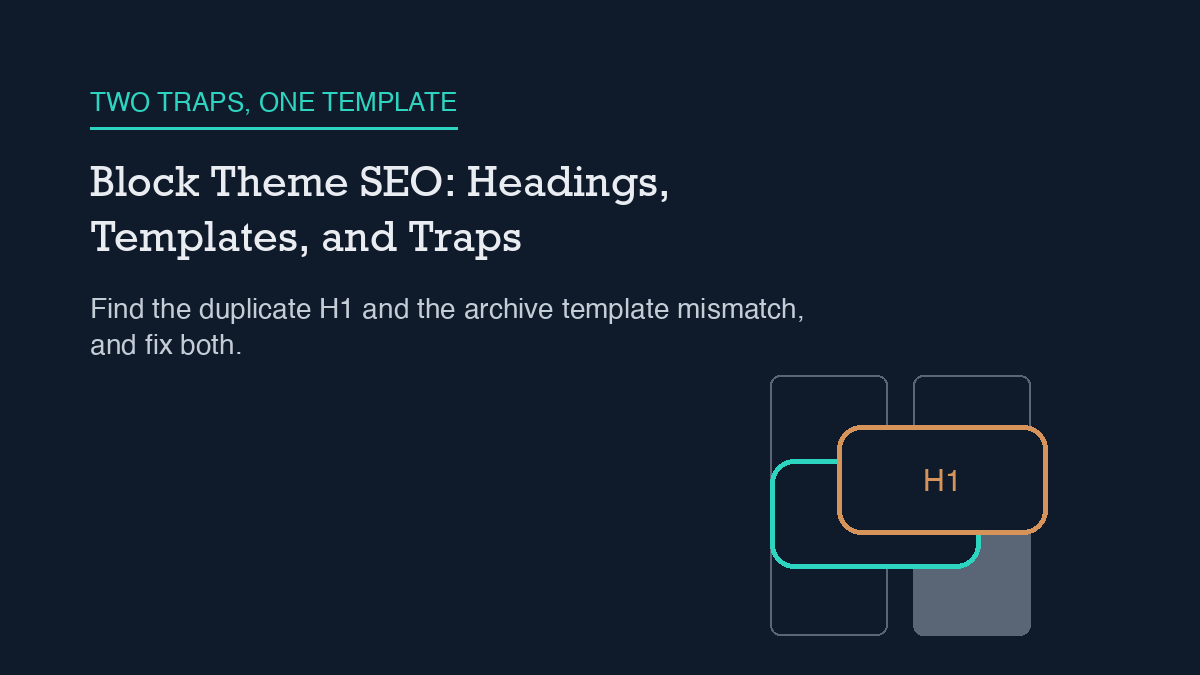
    Most block theme SEO complaints trace back to two specific mistakes. The first is a duplicate H1: the Site Title block and the Post Title block both rendering as h1 on the same page. The second is an archive template whose Query Loop runs a custom query instead of inheriting from the URL, which quietly serves the wrong set of posts under a category or tag link. Open the Site Editor’s document outline, fix whichever block is wrongly set to h1, and switch archive templates back to “Inherit query from URL.” Both fixes take a few minutes once you know where to look.

    Why it happens

    The Gutenberg Site Title block renders as an h1 unconditionally, on every page type, not only the homepage. That behavior was flagged directly against WordPress core as a defect: a 2019 Gutenberg issue documented the Site Title block outputting h1 everywhere and requested conditional rendering instead, an h1 on the front page and a plain element elsewhere, matching how classic themes like Twenty Twenty already behaved. The issue was closed once a fix merged, but the underlying template pattern still reappears whenever someone manually sets both the Site Title block and the Post Title block (or a stray Heading block) to h1 in the same template. Block themes make this easy to do by accident, because heading levels are a per-block setting with no template-wide validation stopping you.

    The Heading block adds a second half to the trap. By default, Gutenberg’s core Heading block does not offer h1 as the first suggested level, on the assumption that the Post Title or Page Title block already supplies the page’s one h1. Remove or hide the Post Title block from a template, and a page can end up with zero h1 elements. Leave a manually set h1 Heading block in place next to an intact Post Title block, and the page gets two. Neither failure is visible in the editor unless you check the document outline, because both render as normal-looking bold text on screen.

    A third source sits in the template files themselves. A block theme only requires one template, index.html, and WordPress resolves every other template by matching the current URL against the template hierarchy: a user-edited template stored in the database first, then a child theme’s /templates folder, then the parent theme’s /templates folder. Archive-type templates (category, tag, author, date, and the generic archive template) commonly ship with a Query Loop block set to inherit the page’s query automatically. Swap that setting for a custom query, even to “improve” the layout, and the template can start showing content that does not match what the URL and title imply, which is the same duplicate-content and canonical mismatch problem covered in more detail in our canonical URL guide.

    Step-by-step fix

    1. Open the template in the Site Editor. Go to Appearance → Editor → Templates, and open the specific template with the problem: the front page, a single post template, or an archive template.

    2. Check the document outline. Click the list-view or outline icon in the top toolbar. It shows the current heading structure top to bottom and flags skipped levels, which is the fastest way to spot a missing or duplicate h1 without reading raw HTML.

    3. Select the offending block. If two blocks show as h1, decide which one should keep that level. On a single post template, the Post Title block should almost always stay h1; the Site Title block should not be.

    4. Change the heading level. With a Heading block selected, use the “HTML element” dropdown in the block’s settings sidebar (or the heading-level control in the block toolbar) to move it from h1 to h2, or the reverse if the page currently has zero h1 elements.

    5. Fix archive templates separately. Open each archive-type template, select the Query Loop block, and confirm “Inherit query from URL” is enabled in the block’s settings sidebar rather than a custom query source.

    6. Save and preview before publishing the template change. Site Editor changes to templates apply site-wide immediately on save, so preview a live example of each affected page type first.

    How to verify it worked

    Reopen the document outline for each template you changed and confirm exactly one h1 appears, in the position you intended. Then check a live, published page directly: open it in a browser, use “View Page Source,” and search for <h1. You should find exactly one match. This is a more reliable check than trusting the editor preview alone, since some SEO plugins run their own on-page analysis that can miss template-level duplication if the plugin’s checker only scans the content field, not the full rendered template. If your workflow already includes a broader pre-publish check, our WordPress SEO checklist is a reasonable place to fold this heading check in as a standing step.

    For the archive-template fix, confirm the category or tag page now lists the posts you expect, in the order you expect, and that the page title and the visible content agree with each other. If you also run structured data on these templates, re-validate it after the change; heading and query fixes do not usually touch schema output, but it costs little to confirm, and our schema markup guide covers how to check that separately.

    What to do when the standard fix fails

    If the document outline still shows a duplicate after you changed the heading level and saved, check whether a child theme is overriding the template you just edited. Because WordPress resolves templates through a fixed precedence order (database-stored user edit, then child theme, then parent theme), an edit made in the Site Editor can be shadowed by a template file still present in an active child theme’s /templates folder. Compare the two and remove or update whichever one is stale.

    If the fix looks correct in the editor but the live page still shows the old structure, a caching plugin or a CDN edge cache is very likely serving a stored copy of the old template output. Purge the page cache, then the site-wide cache, and re-check with a private browser window to rule out your own browser cache.

    If an archive template still shows the wrong posts after switching the Query Loop back to “Inherit query from URL,” check for a second, nested Query Loop block lower in the same template, or a plugin that filters the main query via code. Both can override the block setting you just changed. If the archive itself should not be indexed at all for a given taxonomy, that is a separate decision from fixing the query, and it belongs with your broader indexing rules rather than a template patch; see our guide to noindex mistakes for how to make that call correctly.

    Frequently asked questions

    Does a duplicate H1 directly hurt search rankings?

    There is no verified, direct ranking penalty tied to heading structure alone. The practical risk is indirect: a confused heading structure makes it harder for search engines and assistive technology to determine what the page is actually about, and it often signals a template-level bug that affects every page using that template, not just one post.

    Should every page have exactly one H1?

    That is the accessible, well-supported convention, and it is what block themes assume when they hide h1 as a default option on the Heading block. Multiple sections with their own document outlines, such as an embedded widget, are a narrow exception, not the norm for standard post and page templates.

    Can I just delete the Post Title block instead of changing its heading level?

    Deleting it removes the page’s intended h1 entirely, which trades a duplicate-heading problem for a missing-heading problem. Change the heading level on the block that should not be h1, rather than removing a title block outright.

    Do these two traps apply to classic PHP themes too?

    The Query Loop trap is specific to block themes, since classic themes do not use the Query Loop block. The heading-duplication trap can occur in classic themes as well, if a theme’s header template hard-codes the site name as h1 on every page instead of only the front page, but block themes make the mistake easier to introduce because heading levels are set per block with no template-wide check.


    Shivaa Tripathi runs organic-os, an autonomous content and SEO system for WordPress. This site is both the product and the test bed: every fix described here was verified against a primary source before publishing.

  • A WordPress robots.txt That Does Not Cost You Traffic

    A WordPress robots.txt That Does Not Cost You Traffic

    A WordPress robots.txt only supports four directives that Google actually reads: user-agent, disallow, allow, and sitemap. Everything else, including a noindex line, is silently ignored. Most robots.txt problems on WordPress sites come from either a stray physical file overriding WordPress’s own output, or a disallow rule that blocks something Google needs to render or index the page correctly. Check which file is actually live, fix the specific rule causing the problem, and confirm the change with Google’s own live-URL test rather than assuming it worked.

    Why it happens

    WordPress does not ship with a physical robots.txt file. Instead, core’s do_robots() function generates one on the fly whenever a request hits the robots.txt URL and no real file exists in the site’s root directory. The default virtual output is User-agent: *, Disallow: /wp-admin/, and Allow: /wp-admin/admin-ajax.php. That admin-ajax.php exception exists because a blanket /wp-admin/ block was interfering with front-end AJAX requests that themes and plugins depend on; it was added to core through a dedicated ticket after developers ran into exactly that problem.

    The whole virtual output also passes through a robots_txt filter before WordPress echoes it, so an SEO plugin like Rank Math can rewrite it without ever touching a file on disk. That is also where the first common failure comes from: if a physical robots.txt file already exists in the root directory, WordPress’s virtual generator never runs at all. The web server just serves the static file. Rank Math’s own robots.txt editor documents this directly, because it is a support question they get often: their editor writes to the virtual output, so a leftover physical file silently overrides every change made inside WordPress until that file is edited over FTP or deleted.

    The second common failure is what gets blocked. A rule that was reasonable advice a decade ago, like disallowing /wp-content/ or /wp-includes/ to save “crawl budget,” now actively hurts a site, because Google renders pages using their CSS and JavaScript to judge layout and content. Blocking those directories can make Googlebot see a broken, unstyled version of the page. A narrower but just as damaging version of the same mistake is disallowing /wp-content/uploads/ specifically, which removes every image in the media library from Google Image Search even though the post pages around them stay indexable. A third pattern shows up on sites that recently changed how they handle crawler traffic: someone edits robots.txt to block an AI crawler (a legitimate and increasingly common reason to touch the file, and one covered in more depth in this site’s guide to blocking AI crawlers), and a typo in the user-agent line or path ends up blocking Googlebot along with it.

    Step-by-step fix

    1. Confirm what is actually live. Visit https://yoursite.com/robots.txt directly in a browser. Do not trust a cached copy or a plugin’s settings screen; the browser request shows exactly what a crawler receives right now.

    2. Check for a physical file first. Connect over FTP or your host’s file manager and look in the site’s root directory for a file literally named robots.txt. If one exists, everything you change inside WordPress or an SEO plugin is being ignored in favor of that file, because do_robots() never runs while a physical file is present.

    3. Edit the file that is actually in control. If a physical file exists and you want WordPress or Rank Math to manage it going forward, delete or rename that file so WordPress’s virtual generator (and any plugin filter attached to it) takes over. If no physical file exists, edit the content through Rank Math SEO → General Settings → Edit robots.txt, which requires Advanced Mode to be turned on since the editor is hidden in Easy Mode by default.

    4. Remove any rule broader than it needs to be. Replace a blanket Disallow: /wp-content/ or Disallow: /wp-includes/ with nothing at all unless there is a specific subfolder you actually need hidden, and never disallow /wp-content/uploads/ if you want those images to show up in Google Image Search.

    5. Delete any noindex line inside robots.txt. Google stopped supporting an unsupported noindex: directive inside robots.txt years ago, and it never worked reliably before that either. If the goal is to keep a specific page out of Google’s index, that has to be a noindex meta tag or an X-Robots-Tag HTTP header on the page itself, not a line in this file.

    How to verify it worked

    Reload https://yoursite.com/robots.txt in an incognito window after making changes and read the raw text, not a rendered preview. Confirm the disallow rules you removed are actually gone and that a Sitemap: line still points at your real sitemap, since a robots.txt block is one of the more common reasons a submitted sitemap stops getting crawled the way it should (a failure mode this site has covered separately in its guide to a WordPress sitemap that stops updating).

    Then run the file through Google Search Console’s robots.txt testing tool, or use the URL Inspection tool’s “Test Live URL” feature on a page you expect to be crawlable, and confirm Google’s own reading of the rule matches what you intended. Do not rely on assumption or on how the rule reads to you; robots.txt matching is case-sensitive and wildcard behavior is easy to get subtly wrong.

    What to do when the standard fix fails

    If the live file still shows the old rules after you have edited it, look for caching in front of the request. Some hosts and CDNs cache the robots.txt response separately from the rest of the site, so a plugin-level or file-level change does not show up until that specific cache entry is purged.

    If Search Console still reports pages blocked that you believe should be crawlable, re-check the exact path and user-agent match rather than assuming the rule is wrong. A rule scoped to User-agent: * applies to every crawler that does not have a more specific block further down the file, and a trailing or missing slash on a disallowed path changes what it matches.

    If the site is also managing an llms.txt file for AI crawlers alongside robots.txt, keep the two consistent rather than treating them as unrelated; a mismatch between what robots.txt allows and what an llms.txt file on WordPress promises to AI crawlers is a newer version of the same “which file is actually in control” confusion that causes most robots.txt problems in the first place.

    Frequently asked questions

    Can I use robots.txt to remove a page from Google’s index?

    No. Robots.txt controls crawling, not indexing. If a page is blocked by robots.txt, Google may still index the URL and show it in search results without a description, because it was never able to crawl the page to see any noindex signal. Removing a page from the index is a job for a noindex meta tag or header, which only works on pages Google can actually reach; this site’s separate guide to common WordPress noindex mistakes covers that side of the problem in detail.

    Does WordPress create a real robots.txt file by default?

    No. WordPress generates a virtual one on request through the do_robots() function whenever no physical file exists in the root directory. If you never created one yourself and no plugin created one for you, there is no actual file on the server; the URL just resolves to generated output.

    Will an SEO plugin’s robots.txt editor work if a physical file already exists?

    No. A physical file in the root directory is served directly by the web server and takes priority over anything WordPress or a plugin would otherwise generate. The physical file has to be edited directly or removed before a plugin’s built-in editor has any effect.

    Is it safe to block /wp-admin/ entirely?

    Not entirely, and WordPress does not do this by default. The default rule blocks /wp-admin/ but explicitly allows /wp-admin/admin-ajax.php, because front-end features on many themes and plugins depend on that file being reachable by crawlers as well as visitors.


    About the author: Shivaa Tripathi leads digital and performance marketing at Exotel, focused on demand generation, martech, and applying AI to SEO. He built organic-os, the AI SEO agent that runs under these same guardrails to draft, publish, and verify articles on this site.

  • The WordPress Noindex Mistakes That Hide Your Site

    The WordPress Noindex Mistakes That Hide Your Site

    If a WordPress page or your whole site is missing from Google, the fastest fix is Settings → Reading and unchecking “Discourage search engines from indexing this site.” That single option, backed by the blog_public database value, forces a site-wide noindex tag and overrides any per-post SEO plugin setting. If that box is already unchecked, the next place to check is the individual post’s SEO plugin panel, not your robots.txt file, since a robots.txt block actually stops Google from ever seeing a noindex tag at all.

    Why it happens: WordPress has two separate places to say “don’t index this”

    WordPress controls indexing through a core function called wp_robots_noindex(). It checks one option, blog_public, and if that option is off, it adds noindex to the page’s robots meta tag through the wp_robots filter. That single option is the database value sitting behind the checkbox in Settings → Reading labeled “Discourage search engines from indexing this site.” Nothing exotic is happening under the hood; it’s one option controlling one filter.

    The confusion comes from how that setting used to work. Before WordPress 5.3, checking that box made the virtual robots.txt file output Disallow: /, blocking crawlers outright. That approach had a real flaw: a robots.txt block stops a crawler from fetching the page at all, so it also stops the crawler from ever reading a noindex tag placed on that page. WordPress 5.3 switched to the current behavior, outputting a noindex,nofollow meta tag instead, specifically to close that gap.

    That history matters because the same conflict still shows up constantly, just from different sources. Google’s own documentation is explicit about it: for a noindex rule to work, the page must not be blocked by robots.txt. If it is blocked, Googlebot never crawls it, never sees the noindex tag, and the page can still appear in search results. Combine a stray robots.txt disallow rule with a page you meant to noindex, and you get the opposite of what you wanted.

    Layered on top of WordPress core’s setting is whatever your SEO plugin adds. Rank Math, for example, gives every individual post a Robots Meta control, plus a site-wide default per post type under Titles & Meta. That per-post control only wins if nothing upstream is overriding it. WordPress’s own “discourage search engines” checkbox sits above all of it: if that box is checked, it forces noindex site-wide regardless of what any individual Rank Math toggle says. Most “my noindex setting won’t stick” support threads trace back to exactly this: someone is fighting the wrong control.

    Step-by-step fix

    Work through these in order, checking each one against the live, rendered page rather than a settings screen, since that’s the only place you can see what’s actually being sent to Google.

    1. Rule out the site-wide switch first. Go to Settings → Reading and confirm “Discourage search engines from indexing this site” is unchecked. This is the single most common cause of an entire site vanishing from search results, and it overrides everything else on this list. It’s also the setting most likely to get left on by accident, which the next section covers.

    2. Check the post’s own SEO plugin setting. In Rank Math, open the post, switch to the Advanced tab in the metabox (turn on Advanced Mode from Rank Math SEO → Dashboard if you don’t see it), and look at Robots Meta. If it’s set to No Index, that’s a deliberate per-post override, either one you set intentionally or one left behind from an earlier draft state. The admin bar shortcut “Rank Math SEO → Mark this page → As NoIndex” sets the same field, so check there too if you’re not sure how it got set.

    3. Check the post-type default. If individual posts look correct but an entire content type is missing, look at Titles & Meta → [Post Type] → Robots Meta in Rank Math. This sets the default for every post of that type and is easy to change once by accident while adjusting an unrelated setting.

    4. Check robots.txt separately from noindex. These are two different mechanisms and fixing one doesn’t touch the other. If robots.txt disallows a path, no noindex tag on pages under that path will ever be read by Google, because the crawler stops at the robots.txt block. Load /robots.txt directly and look for a stray Disallow rule covering the page in question.

    5. Save and move to verification. Once you’ve corrected whichever layer was wrong, save the change and don’t assume it worked from the dashboard alone.

    How to verify it worked

    Load the actual published URL in a browser, view source, and search for name="robots". That tag, as rendered on the live page, is the only reliable confirmation; a settings panel saying “Index” doesn’t guarantee the output matches, especially if a caching layer is serving a stale version of the page. This is the same discipline this site applies after any programmatic change made through the WordPress REST API: a successful API response confirms the database was updated, not what a crawler actually receives.

    Separately, check the response headers for an X-Robots-Tag value, since some hosting configurations or CDN rules set this independently of the meta tag in the page’s HTML. Both the meta tag and the header are subject to the same robots.txt caveat: if the page is blocked, neither one gets read.

    Confirm your XML sitemap doesn’t list any URL you intend to keep out of the index. A noindexed page sitting in your sitemap sends Google a contradictory signal and can slow down how quickly the removal actually takes effect once you fix it. After correcting a stuck noindex tag, expect the change to take days to weeks to show up in Google’s index; Google doesn’t publish a fixed recrawl schedule, so treat any faster claim with skepticism.

    What to do when the standard fix fails

    If you’ve cleared the site-wide setting, the per-post override, and the post-type default, and the page is still noindexed, the most common remaining cause is a staging-to-production migration that carried the “discourage search engines” setting along with it. Sites are routinely built on staging with that box checked on purpose, to keep the unfinished copy out of search results. When the staging database gets migrated to the live domain, that setting comes with it, and unless someone remembers to uncheck it after launch, the live site stays invisible to Google, sometimes for weeks before anyone notices the traffic never showed up. If your site recently moved from staging, or a migration or restore ran recently, this is the first thing to check, not the last.

    Also worth remembering: “discourage search engines” is a request WordPress sends to crawlers, not an enforcement mechanism. Well-behaved crawlers like Googlebot respect it, but it doesn’t block access to the content itself, so it’s not a substitute for authentication or access control if the actual goal is keeping a page private rather than out of search results.

    If none of the WordPress-side checks explain it, treat noindex verification as one line item in a broader routine rather than a one-off fix, alongside checks like confirming your canonical URLs point where you expect. Noindex and canonical tags solve different problems and are easy to confuse, but both are worth confirming together. Running through both as part of a standing WordPress SEO checklist, rather than only after Search Console flags a drop, catches this kind of drift before it costs weeks of missing impressions.

    Frequently asked questions

    Does unchecking “discourage search engines” index my site immediately?

    No. Unchecking it removes the noindex signal, but Google still has to recrawl the page and decide to index it, which is not instant and has no published fixed timeframe. It generally takes days to weeks, not hours.

    Can a page be noindexed and still show up in Google search results?

    Yes, if robots.txt is blocking the page. Google’s documentation is explicit that a noindex tag only works if the crawler can actually reach the page; a robots.txt block prevents that, so the page can keep appearing in results even with a noindex tag sitting unread on it.

    Is noindex the same as a canonical tag?

    No. A canonical tag tells Google which URL is the authoritative version among duplicates; noindex tells Google not to show a page in results at all. Using one where you meant the other is a common source of confusion covered in more detail in the canonical URL guide.

    Why does my SEO plugin’s noindex toggle not seem to work?

    Check WordPress’s own Settings → Reading page first. The core “discourage search engines” setting overrides any per-post plugin toggle, so a plugin set to “Index” will still render as noindex if that core box is checked.


    About the author: Shivaa Tripathi leads digital and performance marketing at Exotel, focused on demand generation, martech, and applying AI to SEO. He built organic-os, the AI SEO agent that runs under these same guardrails to draft, publish, and verify articles on this site.

  • WordPress Canonical URLs: Rules and Common Breakage

    WordPress Canonical URLs: Rules and Common Breakage

    When WordPress shows the wrong canonical URL, it’s almost always one of three things: a plugin or theme filter overriding the default, an SEO plugin’s manual override field left pointing at the wrong page, or two systems (an HTML tag and your sitemap, say) disagreeing about which URL is real. Check the rendered page source for the actual <link rel="canonical"> tag, find which of the three is responsible, and fix that one source instead of guessing at settings.

    Why it happens: WordPress builds a canonical, but anything can override it

    WordPress core doesn’t leave canonical URLs to chance. Every published post gets one automatically: the wp_get_canonical_url() function builds it from get_permalink(), adds pagination handling for paginated posts and comments, and outputs the result in the page head. That’s the default, and on a plain WordPress install with no SEO plugin, it’s usually correct.

    The breakage comes from the next step. That output passes through the get_canonical_url filter hook before it’s printed, which means any theme or plugin can intercept it and substitute a different URL. An SEO plugin doing this on purpose (to point a duplicate page at its main source) is normal and useful. A caching plugin, an old theme function, or a leftover custom filter doing it by accident is how you end up with a canonical tag that quietly points somewhere wrong for months before anyone notices.

    Underneath that mechanism, the actual duplicate-content triggers are predictable: URL variations (HTTP vs. HTTPS, www vs. non-www, a trailing slash or not, tracking parameters like ?ref= or ?sort=), category and tag archives that repeat post content across multiple URLs, pagination chains like /page/2/, and syndicated copies of your content living on other domains. None of these are exotic. They’re what most WordPress sites accumulate by default, and a canonical tag is the tool that tells Google which one is the real page.

    Step-by-step fix

    Start by confirming what’s actually being output, not what a setting says it should be. Load the live page in a browser, view source, and search for rel="canonical". Whatever URL is in that tag right now is the one Google is reading, regardless of what any plugin dashboard claims.

    If that URL is wrong, work through these in order:

    1. Check for a manual override. In Rank Math, open the post, go to the Advanced tab (enable Advanced Mode from Rank Math SEO → Dashboard if that tab isn’t visible), and look at the Canonical URL field. If it’s populated with something other than the page’s own URL, that’s your answer: someone (or an earlier version of your workflow) set an override on purpose or by mistake.

    Every SEO plugin exposes some version of this field. If you’re not on Rank Math, the same field exists under a similar name in Yoast’s Advanced tab or your plugin’s equivalent settings panel.

    2. Check for a theme or plugin filter. If the override field is empty but the rendered tag still shows the wrong URL, something is hooking get_canonical_url directly. Search your theme’s functions.php and any custom-code plugins for that filter name. This is the case that manual settings can’t fix, because the setting was never wrong; code downstream of it is rewriting the output.

    3. Check whether two systems disagree. A canonical tag pointing one way while your XML sitemap lists a different URL for the same content sends Google a mixed signal. Sitemap inclusion is a real canonicalization signal, just a weaker one than the HTML tag or a redirect, and having them contradict each other is one of the most common ways sites break their own canonicalization without anyone touching the canonical field directly.

    4. Set the correct value and re-save. Once you’ve found the actual source, either clear the override field so the post reverts to its own permalink, or set it explicitly to the correct destination URL if this page is intentionally a duplicate of another. Save, and don’t stop here.

    How to verify it worked

    Re-check the live rendered source, not the editor preview. Load the published URL directly and search for rel="canonical" again; confirm the tag now shows the URL you intended, and that there’s exactly one canonical tag on the page. A page with two conflicting canonical tags (one from a plugin, one hardcoded in a theme template) is a real failure mode, and it only shows up by reading the actual output.

    This is the same verification discipline this site applies to every published page: after any programmatic change to SEO fields via the WordPress REST API, re-fetch the live page and confirm the change actually rendered, rather than trusting that a successful API response means the front end matches. A 200 response from a settings update tells you the database was written; it doesn’t tell you what a crawler sees.

    Beyond the tag itself, confirm the canonical URL is absolute (not a relative path) and sits inside the page’s <head>. Both are easy to break with a hand-edited template and both make Google discard the signal rather than raise an error you’d notice.

    What to do when the standard fix fails

    If you’ve cleared the override, confirmed no filter is rewriting the output, and the tag still looks wrong, the problem is usually that the canonical tag isn’t the only signal in play, and something else is winning. Google explicitly ranks these signals by strength: redirects, especially 301s, are the strongest; a rel="canonical" tag is a strong signal but not absolute; sitemap inclusion is weaker still. If a 301 redirect somewhere in your stack points to a different URL than your canonical tag names, the redirect generally wins the argument, and no amount of editing the canonical field will override it.

    Also rule out the more common mistakes that look like canonical bugs but aren’t: using noindex on a page when the actual intent was to canonicalize it to another page (these do different things), or relying on a robots.txt block or a URL-removal request to handle what a canonical tag should be doing. None of those substitute for a correct rel="canonical" tag, and Google’s own guidance calls out all three as common errors.

    If none of that resolves it, treat it as a technical SEO audit item rather than a one-off fix: canonical URLs are one line item in a broader routine, alongside things like structured data that make similar “here’s the real, authoritative version of this page” statements to Google from a different angle. Working through canonical checks as part of a standing WordPress SEO checklist, rather than only when Search Console flags something, catches drift before it compounds across dozens of posts.

    Frequently asked questions

    Does WordPress set a canonical URL automatically if I do nothing?

    Yes. WordPress core generates one for every published post based on its permalink, with no plugin required. Unpublished content doesn’t get one; wp_get_canonical_url() returns false until the post is live.

    Is a wrong canonical tag the same problem as a noindex tag?

    No, and mixing them up is one of the most common canonicalization mistakes. A canonical tag tells Google which URL to treat as authoritative among duplicates; noindex tells Google not to show a page in results at all. Using one where you meant the other produces confusing results either way.

    Can a sitemap fix a canonical problem on its own?

    Not reliably. Sitemap inclusion is a real signal, but it’s a weaker one than a redirect or an on-page canonical tag, and if your sitemap disagrees with your canonical tag, the tag and any redirects generally take priority in how Google resolves the conflict.

    Why does my canonical URL keep reverting after I fix it?

    This usually means a theme function or plugin is hooking the get_canonical_url filter and rewriting the output every time the page loads, rather than the setting itself being wrong. Editing the field again won’t hold if the code downstream keeps overriding it; that code has to be found and changed instead.


    About the author: Shivaa Tripathi leads digital and performance marketing at Exotel, focused on demand generation, martech, and applying AI to SEO. He built organic-os, the AI SEO agent that runs under these same guardrails to draft, publish, and verify articles on this site.

  • WordPress Schema Markup: What to Add and What to Skip

    WordPress Schema Markup: What to Add and What to Skip

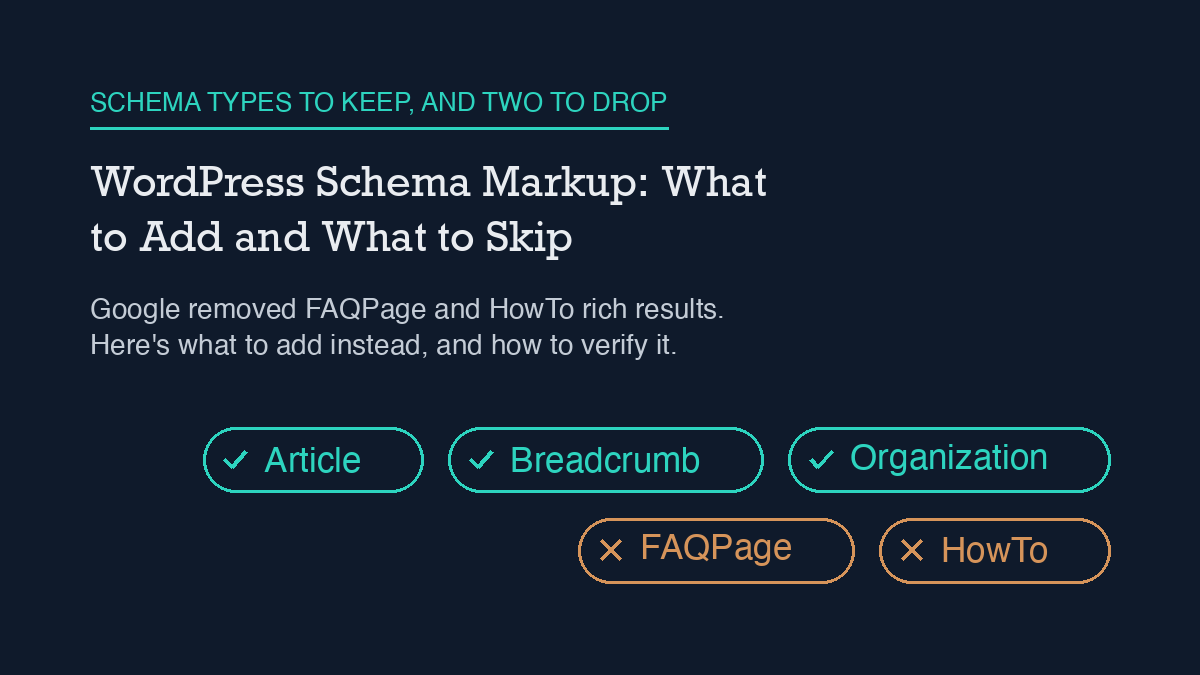
    Most WordPress sites need far less schema markup than the generic SEO advice suggests. Add Article schema to posts, Breadcrumb schema to your site structure, and Organization schema to your homepage, all through Rank Math’s Schema module. Skip FAQPage and HowTo entirely: Google no longer shows either as a rich result for ordinary sites, so that markup does nothing except add weight to your page.

    What changed with FAQPage and HowTo

    If you added FAQ or How-To schema to WordPress posts in the last few years, that advice is now out of date. Google restricted FAQ rich results to well-known, authoritative government and health websites back in September 2023, then removed FAQ rich results from Search entirely starting May 7, 2026. Google’s own documentation page for FAQPage was removed the following month. HowTo isn’t listed among Google’s current supported structured-data types either.

    Neither type throws an error if you keep it. The markup is still valid schema.org syntax, and Rank Math or a JSON-LD snippet will still output it without complaint. It just doesn’t do anything for you anymore. On a site like this one, that’s dead weight in the page: a JSON-LD block the crawler parses and gets no ranking or rich-result benefit from, while your actual content ships to the reader with extra bytes ahead of it.

    What still works, and what it needs

    Google’s current supported list is narrower and more specific than “add all the schema types.” For a typical WordPress content site, three are worth the setup time.

    Article schema has no required properties at all; Google’s guidance is to add whichever recommended properties actually apply to your content rather than force-fill a checklist. The properties worth setting are headline, author (with a name and ideally a URL), datePublished, dateModified, and image in a few aspect ratios. This is the schema type every blog post on this site carries, including this one.

    Breadcrumb schema needs a BreadcrumbList with at least two ListItem entries, each with a position, a name, and an item URL (the URL is optional only on the final, current-page item). Google specifically recommends breadcrumbs that reflect how a visitor would actually navigate your site, not a literal copy of your folder structure.

    Organization schema on your homepage or about page tells Google who’s behind the site: your name or business name, logo, and official URLs. It’s the schema equivalent of a byline for the whole site rather than one post, and it supports the same author/entity signals your individual Article schema is already sending per post.

    Setting it up in Rank Math

    Rank Math ships a dedicated Schema module that has to be switched on from the Modules screen before any of this works. Once it’s active, go to Rank Math SEO → Titles & Meta and set a default schema type per post type; Posts should default to Article. That default applies automatically to every new post, which is the version most sites should stick with rather than customizing per post.

    For a specific page that needs something different, for example a service page that should carry Product or LocalBusiness schema, open that page and use the Rank Math metabox (it appears the same way in the Classic Editor and the block editor) to override the default or add an additional schema type just for that page. This is also where you’d remove FAQPage or HowTo schema if an older post still has it configured from before these changes.

    This site runs a lighter version of the same idea without the Rank Math schema builder: a custom agent_jsonld meta field carries hand-built JSON-LD per post, checked into the same WordPress REST API workflow this site uses for other SEO automation (see how this site uses the WordPress REST API for SEO). Either approach, Rank Math’s native builder or a direct JSON-LD field, produces the same output Google reads: it’s a markup-format choice, not a strategy choice.

    How to verify it’s actually working

    Two checks matter, and they check different things. First, validate the markup itself is well-formed and carries the properties a given type needs; that’s a syntax check, not a ranking check. Second, and more useful day to day, view the page’s source and confirm your JSON-LD block is actually present in what gets served, not just in the editor. It’s easy to set schema in a plugin’s UI and have a caching layer or a template override serve a page that never picked it up.

    Do this after every schema change, not just once at setup: publish, then load the live URL and check the rendered HTML directly, the same way this site verifies every post it publishes (worth pairing with a broader look at this site’s WordPress SEO checklist, where schema is one item among several that’s easy to set once and never re-check). If you’re running Rank Math’s automated checks on a schedule, automating Rank Math with an AI agent covers one way to catch a schema field silently reverting after a plugin update, which is a more common failure mode than getting the markup wrong in the first place.

    What to do about FAQ content you already have

    Dropping FAQPage schema doesn’t mean dropping FAQ sections from your posts. An on-page FAQ block still answers real reader questions, and it’s still useful for AI Overviews and other answer-engine surfaces that read your visible page content directly rather than relying on the JSON-LD wrapper. The fix is narrower than a full content rewrite: keep the visible questions and answers, remove the FAQPage JSON-LD block pointing at them, and don’t add new FAQPage markup going forward. Google Search Console won’t flag this as an error either way; it simply stops counting toward a rich result it no longer shows.

    The same logic applies to any other schema type not on Google’s current supported list: leaving it in place is a page-weight and page-count problem, not a penalty risk. If you’re auditing a site for the first time and finding old FAQPage or HowTo markup scattered across dozens of posts, treat it the same way you’d treat any other stale technical debt, similar to how a stale caching layer can quietly break a site’s Core Web Vitals long after the actual page content is fine: worth cleaning up on a schedule, not worth an emergency fix.

    Frequently asked questions

    This site keeps a visible FAQ section here on purpose, for the reasons covered above: it answers real questions and it’s still useful for AI Overviews and other surfaces that read the page directly, even though the JSON-LD behind it is Article schema rather than FAQPage.

    Will removing FAQPage schema hurt my rankings?

    No. FAQPage hasn’t been eligible for a rich result on an ordinary site since May 2026, so there’s no ranking or rich-result benefit left to lose. Removing the JSON-LD block only removes markup Google was already ignoring; your visible content and rankings are unaffected.

    Should I still write FAQ sections in my posts?

    Yes, for readers and for AI Overviews and similar answer-engine surfaces, both of which read your visible page text rather than the JSON-LD wrapper. Write the FAQ section as normal page content; just don’t wrap it in FAQPage structured data anymore.

    Does Rank Math still let me add FAQPage schema if I want to?

    Yes, the option is still there in the Schema module, because Rank Math supports the full schema.org vocabulary, not just Google’s current rich-result list. Having the option doesn’t mean it’s still useful; for Google Search specifically, it isn’t.

    What’s the single highest-priority schema change for most WordPress sites right now?

    Confirm every post carries Article schema with a real datePublished, dateModified, and author, then remove any FAQPage or HowTo JSON-LD left over from older advice. That one pass covers both what to add and what to skip.


    About the author: Shivaa Tripathi leads digital and performance marketing at Exotel, focused on demand generation, martech, and applying AI to SEO. He built organic-os, the AI SEO agent that runs under these same guardrails to draft, publish, and verify articles on this site.

  • Fixing Core Web Vitals on WordPress Without a Rebuild

    Fixing Core Web Vitals on WordPress Without a Rebuild

    Most WordPress Core Web Vitals failures come from three fixable things: images that load in the wrong order, render-blocking CSS and JS ahead of the visible content, and third-party scripts running before the page needs them. Fix the loading order first, measure again, and only look at hosting or a rebuild if the numbers still don’t move.

    What Core Web Vitals actually measure

    Core Web Vitals are three specific metrics, not a vague “speed score.” Largest Contentful Paint (LCP) measures how long the biggest visible element takes to render. Interaction to Next Paint (INP) measures how long the page takes to respond after a click, tap, or keypress. Cumulative Layout Shift (CLS) measures how much content jumps around while the page loads. Google’s own thresholds for “good” are LCP at 2.5 seconds or under, INP at 200 milliseconds or under, and CLS at 0.1 or under, each measured at the 75th percentile of real page loads across mobile and desktop.

    That 75th-percentile detail matters more than most WordPress guides mention. A single fast test in PageSpeed Insights does not mean the metric passes for real visitors. It means at least three out of four of your actual page loads need to hit that threshold, which is a higher bar than one lucky lab run.

    Why it happens on WordPress specifically

    WordPress itself is not slow. What breaks Core Web Vitals is almost always the combination of plugins, theme, and default settings stacked on top of it, the same layered-settings problem behind most WordPress performance and SEO issues (see this site’s own WordPress SEO checklist for how Core Web Vitals fits into the wider picture). Three patterns show up repeatedly.

    Image-optimization plugins lazy-load everything, including the image that should load first. Lazy loading is supposed to delay offscreen images so the browser can prioritize what’s visible. Most plugins apply loading="lazy" to every image on the page by default, including the hero image above the fold, which is frequently the exact element LCP is measuring. Delaying it makes LCP worse, not better.

    Render-blocking CSS and JS sit ahead of the content. Every stylesheet and script a theme or plugin queues in the page head has to be downloaded and parsed before the browser can paint anything. Page builders and multi-purpose themes tend to load a large shared CSS/JS bundle on every page, even pages that use none of it.

    Third-party embeds and trackers run on page load instead of on interaction. Chat widgets, ad scripts, and analytics snippets that fire immediately compete with your own content for the main thread, which shows up as slow INP.

    The fix, in order

    1. Fix the LCP image first. Identify the actual LCP element using PageSpeed Insights or Chrome DevTools’ Performance panel. If it’s an image, make sure it is not marked loading="lazy", and add fetchpriority="high" to it if your theme or a plugin lets you set that attribute. Most image-optimization plugins have a setting to exclude a specific number of “above the fold” images from lazy loading; use it, and set the count to match how many images actually appear before the first scroll on your layout, not a default guess.

    2. Compress and correctly size images everywhere else. Serve images in WebP or AVIF, sized to the actual display dimensions rather than the full upload size, and keep lazy loading on for anything genuinely below the fold. This is where lazy loading helps: it defers work the browser doesn’t need yet, without touching the element LCP is measuring.

    3. Trim render-blocking CSS and JS. Use a caching or optimization plugin’s “defer JavaScript” and “eliminate render-blocking resources” settings, but apply them selectively and retest after each change. A blanket “defer everything” setting can break page functionality as often as it helps LCP, especially with page builders that expect certain scripts to load synchronously.

    4. Delay third-party scripts until interaction. Move chat widgets, non-essential trackers, and embedded video players to load after the user scrolls or clicks, rather than on initial page load. Several caching plugins now include a “delay JavaScript execution” option built for exactly this.

    5. Reserve space for anything that loads late. Set explicit width and height attributes on images and embeds, and reserve space for ad slots or dynamically inserted banners, so content already on the page doesn’t jump when they load. This is the direct fix for CLS.

    How to verify it worked

    Re-test after each change, not just at the end. A single PageSpeed Insights run gives you a lab score; the field data that actually determines your Core Web Vitals status in Google Search Console comes from real visitor traffic over the previous 28 days, so it lags behind your fixes by design. Use the lab score to confirm a fix moved the right metric, and treat Search Console’s Core Web Vitals report as the slower, authoritative confirmation once enough traffic has come through.

    If you use Rank Math, its built-in SEO analyzer flags some of the same render-blocking and image-size issues surfaced above, which gives you a second, faster check between full PageSpeed runs; see automating Rank Math with an AI agent for one way to run that check on a schedule instead of by hand. For sites where checks like this need to repeat automatically, the WordPress REST API can pull the same page data on a schedule, which is worth setting up once the manual fix list above is under control.

    What to do when the standard fix fails

    If LCP, INP, and CLS are still failing after working through the list above, the bottleneck usually isn’t front-end loading order anymore, it’s server response time or a caching conflict. Before assuming you need a full rebuild or a theme change, rule out a stale or misconfigured caching layer specifically: a cache serving an old, unoptimized version of a page will fail Core Web Vitals no matter how well the current version is built. That’s exactly the failure mode covered in this site’s own write-up on a WordPress sitemap that wouldn’t update, and the same caching-layer diagnostic order applies here.

    If caching is confirmed clean and the metrics still fail, look at server response time itself (time to first byte) before anything else. No amount of front-end optimization fixes a slow origin server, and that’s a hosting-tier problem rather than a plugin-settings problem.

    FAQ

    What’s the fastest way to check if my WordPress site is failing Core Web Vitals?

    Run the URL through PageSpeed Insights for an immediate lab reading, and check the Core Web Vitals report in Google Search Console for the field data based on real visitors, which is the number that actually reflects search performance.

    Does lazy loading images always help Core Web Vitals?

    No. Lazy loading helps for offscreen images but hurts LCP when it’s applied to the image that’s actually visible first, which is what most image plugins do by default. Exclude the above-the-fold image or images from lazy loading and keep it on for everything else.

    Will a caching plugin fix Core Web Vitals on its own?

    Partially. A caching plugin helps server response time and can defer or delay some scripts, but it won’t fix an LCP image that’s incorrectly lazy-loaded or layout shifts from missing image dimensions. Those need to be fixed directly, alongside caching.

    Do I need to change my WordPress theme to pass Core Web Vitals?

    Usually not. Most failures trace back to image loading order, render-blocking assets, and third-party scripts, all of which are fixable through settings and plugin configuration. A theme change is worth considering only after those fixes are in place and server response time is confirmed as the remaining bottleneck.


    About the author: Shivaa Tripathi leads digital and performance marketing at Exotel, focused on demand generation, martech, and applying AI to SEO. He built organic-os, the AI SEO agent that runs under these same guardrails to draft, publish, and verify articles on this site.

  • WordPress Sitemap Not Updating? The Cache Is Why

    WordPress Sitemap Not Updating? The Cache Is Why

    A WordPress sitemap that stops updating is almost always a caching problem, not a broken sitemap. Rank Math (and most SEO plugins) cache the generated sitemap file, and a page-caching plugin or CDN in front of the site often caches it a second time. The fix is to flush the sitemap cache from the plugin’s settings, resave permalinks to refresh the underlying rewrite rules, and exclude the sitemap URL from any caching layer sitting in front of WordPress. If that doesn’t hold, a code snippet can disable sitemap caching outright.

    I run into this on my own site. This site’s own sitemap has a URL sitting on a timestamp from over a month ago, unchanged through dozens of new posts, and I’ve watched the WordPress account I publish through get refused when it tried to fix that on its own. Both of those are real, not hypothetical, and both point at the same mechanism.

    Why it happens

    A WordPress sitemap is not a static file sitting on disk. Plugins like Rank Math generate it on request, then cache the result so every visitor and crawler doesn’t trigger a fresh rebuild. That caching is normally invisible and helpful. It becomes a problem the moment content changes and the cached version doesn’t get invalidated, which Rank Math’s own documentation names as one of the most common causes of a stale sitemap.

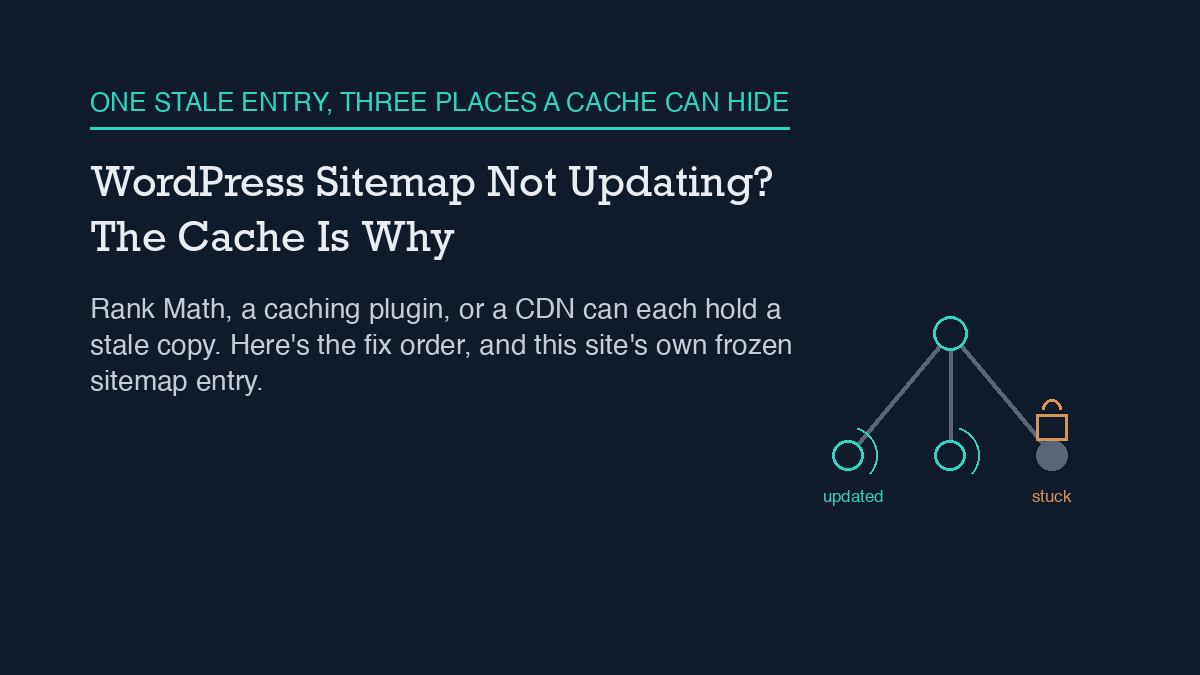
    There are three places that cache can get stuck. First, Rank Math’s own sitemap cache, which should clear automatically when you publish or update a post but sometimes doesn’t. Second, a page-caching plugin or a CDN sitting in front of WordPress, which may be caching the sitemap URL the same way it caches any other page, on a schedule that has nothing to do with when your content changes. Third, leftover rewrite rules from before a permalink change, which can make the sitemap URL route to something stale even after the underlying data is current.

    I’ve read the REST API side of how Rank Math’s fields and this kind of automation actually connect in this site’s piece on automating Rank Math with an AI agent, and the same plugin-versus-caching-layer distinction shows up there: the plugin does its job correctly, and something else downstream holds onto an old copy.

    The step-by-step fix

    Work through these in order. Most sitemap freezes resolve at step one or two.

    1. Flush the sitemap cache from Rank Math’s settings. Rank Math’s sitemap settings include a cache-clearing action; running it forces a fresh generation on the next request instead of serving whatever was built last.

    2. Resave permalinks. Go to Settings > Permalinks and click Save Changes without changing anything. This forces WordPress to rebuild its rewrite rules, which fixes cases where the sitemap URL itself was routing incorrectly after a structural change to the site.

    3. Exclude the sitemap URL from any caching plugin or CDN. If a caching plugin or a CDN sits in front of WordPress, add the sitemap path (typically sitemap_index.xml and any *-sitemap*.xml path) to its cache-exclusion list. Otherwise the plugin can clear its own cache correctly and the visible sitemap still won’t change, because the caching layer in front of it is serving an older copy.

    4. Check for a static sitemap file conflict. Older setups, migrations, or a previous SEO plugin can leave a static sitemap.xml file sitting in the site’s root directory. If one exists, it can take priority over the dynamically generated one. Removing it lets the generated sitemap serve correctly.

    5. Rule out a plugin conflict. Rank Math recommends the Health Check & Troubleshooting plugin for this: it lets you disable other plugins in a way only you can see, without affecting live visitors, so you can find out if a caching, security, or second SEO plugin is interfering with sitemap generation.

    6. Confirm robots.txt isn’t blocking the sitemap path. This is rare, but worth a quick look if every earlier step checks out and the sitemap still won’t refresh.

    If none of that holds, Rank Math’s own documentation gives a PHP filter that turns sitemap caching off entirely:

    add_filter( 'rank_math/sitemap/enable_caching', '__return_false' );

    Add it through a code snippets plugin or the theme’s functions file. This removes the plugin-level caching layer as a possible cause, which is useful for isolating whether the freeze is coming from Rank Math or from something else in front of it.

    How to verify it worked

    Don’t stop at “the settings page said it cleared.” Open the sitemap URL directly in a browser, using a private/incognito window so your own browser cache doesn’t show you a stale copy, and check the lastmod value on the entry you just changed. If it matches the time you just published or edited, the fix held. If it still shows an old date, one of the caching layers above the plugin is still serving the old file, and it’s worth working back through steps one through three before assuming something more complex is wrong.

    It’s also worth checking this more than once. A sitemap can look fixed immediately after a manual flush and then freeze again on the next publish if the underlying cause, usually a caching plugin or CDN rule, was never actually addressed. Watching a site’s sitemap and indexing behavior over time, rather than checking it once and moving on, is the difference between a fix and a coincidence, which is the same reasoning behind this site’s approach to ongoing SEO drift monitoring.

    When the standard fix doesn’t work

    If you’ve worked through every step above and the sitemap still won’t update, two things are worth doing before assuming the plugin itself is broken. Resubmit the sitemap URL in Google Search Console, since a manual resubmission sometimes forces a recrawl even when the underlying cache issue hasn’t fully resolved. And if the site is on managed WordPress hosting, check whether the host runs its own server-level caching layer that isn’t visible from inside wp-admin at all, since that’s a fourth possible cache location beyond the plugin, a caching plugin, and a CDN. If the sitemap is still stale after all of that, it’s a reasonable point to open a support request with Rank Math directly, since a persistent freeze at that point usually needs someone who can see server-level logs.

    What actually happened here

    I’m not describing this from a manual. This site’s own sitemap currently shows an entry with a lastmod value stuck at a specific point over a month back, unmoved through everything published since, which is the exact frozen-cache pattern described above, caught on this site’s own sitemap rather than someone else’s.

    The part worth naming honestly: the WordPress account this site’s publishing agent uses can create, edit, and publish posts and their SEO fields without trouble, but it gets refused with an HTTP 403 error the moment it tries to purge Rank Math’s sitemap cache directly, because that specific action needs a higher permission level than an editor-role account holds. I’ve written about why that account is scoped that way, deliberately, in this site’s piece on its own access model, and the mechanics of why a scoped credential can’t simply grant itself more access are covered in this site’s guide to WordPress application passwords. In practice, that means the manual, human-run version of steps one and two above is still the actual fix here. An agent that can publish content isn’t automatically an agent that can administer a plugin’s settings, and in this case that gap is exactly why the fix hasn’t landed yet.

    Frequently asked questions

    Why does my WordPress sitemap show old content after I publish a new post?

    Almost always because a cached copy of the sitemap is being served instead of a freshly generated one. The cache can sit at the SEO plugin level, at a page-caching plugin or CDN in front of WordPress, or in leftover rewrite rules from an earlier permalink change.

    Will resaving permalinks fix a stale sitemap?

    It fixes cases where the sitemap URL itself is routing incorrectly after a structural or permalink change, by forcing WordPress to rebuild its rewrite rules. It won’t help if the real cause is a caching plugin or CDN serving an old copy of the file, which needs its own exclusion rule.

    Do I need to disable my caching plugin to fix a sitemap that won’t update?

    No. Excluding the sitemap URL from that plugin’s cache rules is enough, and it leaves caching turned on for every other page, which is where the performance benefit actually matters.

    What if flushing the sitemap cache doesn’t fix it?

    Work through permalinks, caching-layer exclusions, a static sitemap file conflict, and a plugin-conflict check in order. If all of those check out, Rank Math’s documentation provides a filter to disable its sitemap caching outright, which isolates whether the plugin or something else in front of it is the actual cause.


    About the author: Shivaa Tripathi leads digital and performance marketing at Exotel, focused on demand generation, martech, and applying AI to SEO. He built organic-os, the AI SEO agent that runs under these same guardrails to draft, publish, and verify articles on this site.